GetApp offers objective, independent research and verified user reviews. We may earn a referral fee when you visit a vendor through our links.
Our commitment
Independent research methodology
Our researchers use a mix of verified reviews, independent research, and objective methodologies to bring you selection and ranking information you can trust. While we may earn a referral fee when you visit a provider through our links or speak to an advisor, this has no influence on our research or methodology.
Verified user reviews
GetApp maintains a proprietary database of millions of in-depth, verified user reviews across thousands of products in hundreds of software categories. Our data scientists apply advanced modeling techniques to identify key insights about products based on those reviews. We may also share aggregated ratings and select excerpts from those reviews throughout our site.
Our human moderators verify that reviewers are real people and that reviews are authentic. They use leading tech to analyze text quality and to detect plagiarism and generative AI.
How GetApp ensures transparency
GetApp lists all providers across its website—not just those that pay us—so that users can make informed purchase decisions. GetApp is free for users. Software providers pay us for sponsored profiles to receive web traffic and sales opportunities. Sponsored profiles include a link-out icon that takes users to the provider’s website.
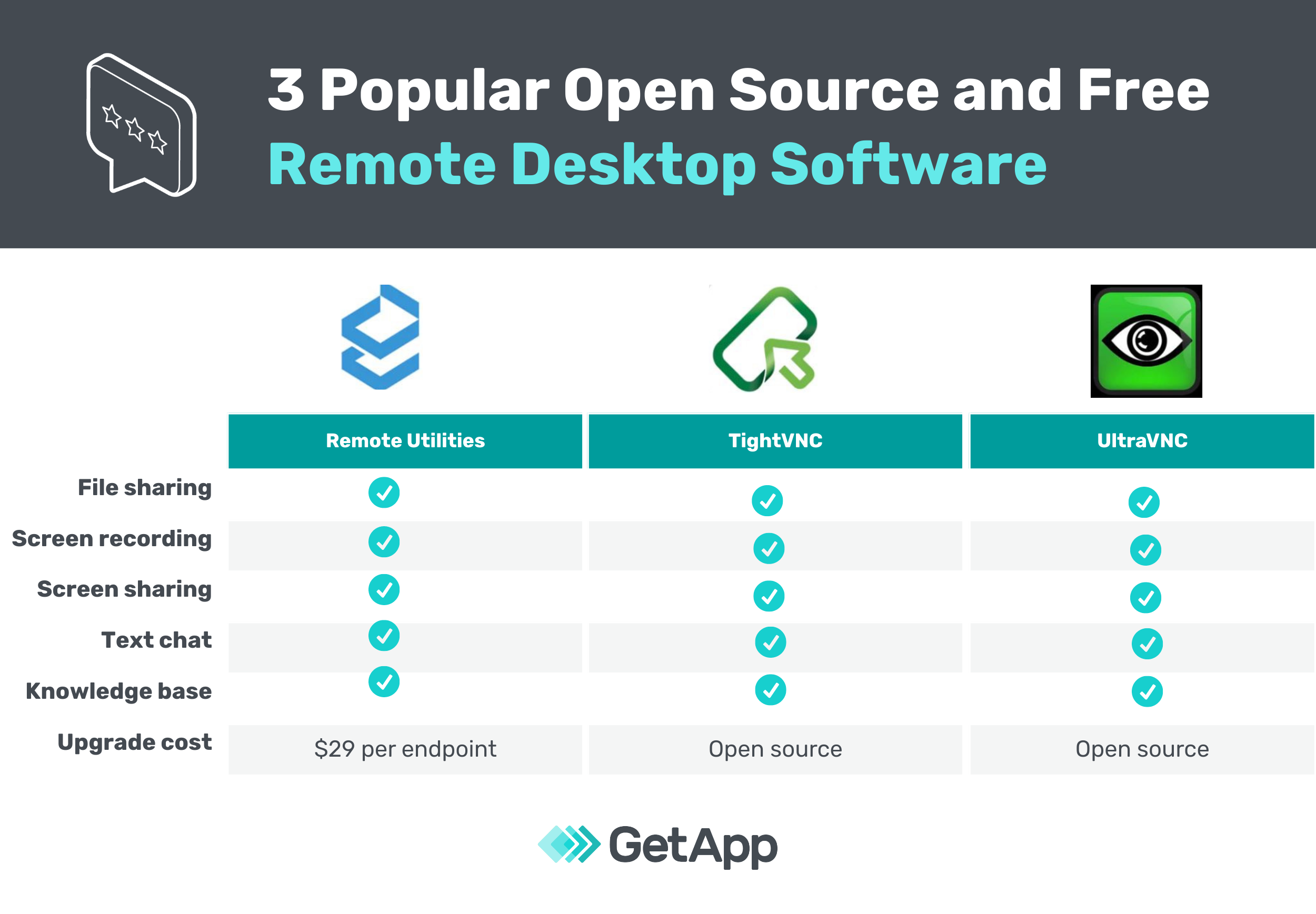
3 Popular Open Source and Free Remote Desktop Software
These three free remote desktop software tools will help your IT team access and control remote devices to troubleshoot tech issues.


Consider one of your employees is traveling for business or working remotely and faces an unexpected technical glitch with the work laptop. Should the employee let a third-party vendor try fixing the IT issue? The answer is certainly not. Work devices store confidential business data and shouldn’t be accessed by any third party.
During such situations, you can rely on remote desktop software. It sets up a secure remote desktop connection that lets your IT team request access and control any employee’s system remotely to troubleshoot issues. IT teams can also use the software to install and update applications and transfer files between the connected systems. Likewise, the software can be used to offer remote tech support to your clients or customers.
If you’re looking to purchase a remote access tool but don’t know where to start, check out these three popular open source and free remote desktop solutions—based on Google’s search engine queries. All three tools offer a stand-alone free module to get you started. If you need more features, you can choose to upgrade.
Read our complete product selection methodology at the bottom of the article.
1. Remote Utilities
Remote Utilities is an on-premise remote desktop tool. Some of its key features are file sharing, real-time chat, remote printing, desktop sharing, and session recording.
Its free license allows users to add up to 10 remote computers (hosts) in the address book of the admin module. The free license can be used for business as well as personal purposes. Users have to fill in an online form to generate the free license key, which is sent to their email address.
Key highlights of the tool:
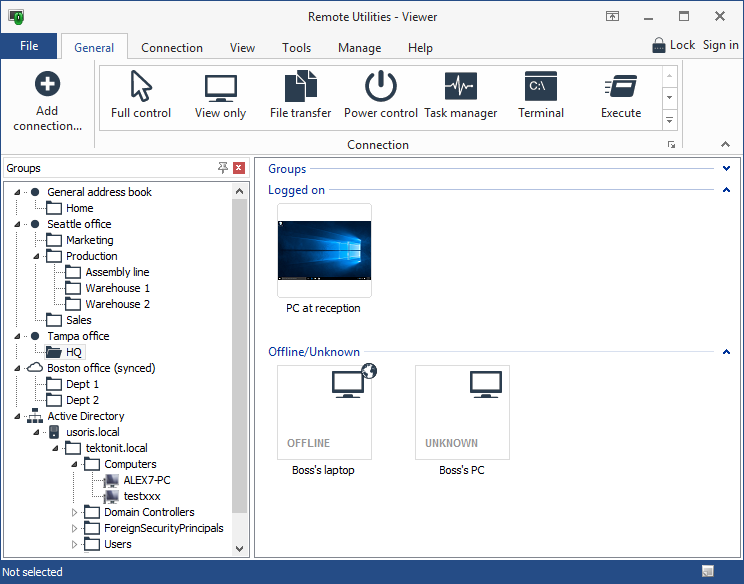
Allows the admin system to connect to multiple host systems simultaneously. Access passwords can be saved, so admins can start sessions without entering the password every time.
Lets admin users send ping commands to check if a specific remote computer is reachable, i.e., accessible over the network. Ping commands can be automated or run manually.
Offers an encrypted channel via which files can be copied or moved between the connected systems.
Supports remote printing, which allows users to print a remote document on a local printer.
Allows users to generate reports on the hardware performance, software licenses, security strength, etc. of the host systems.
Helps users record high-definition videos of remote sessions for future reference and auditing purposes.
Upgrade cost: The paid license starts at $29 per endpoint.
Support: A document library, an online customer portal, knowledge base articles, and user forums.
FAQ: Can the software be used on Mac and Linux systems as well as Android and iOS mobile devices?
Answer: Yes. The Remote Utilities Viewer beta version is available for download on Mac and Linux systems. The software can also be used on Android and iOS devices.
2. TightVNC
TightVNC is an open source remote control software solution. Some of its key features are file sharing, screen sharing, video mirroring support, and access to multiple remote monitors.
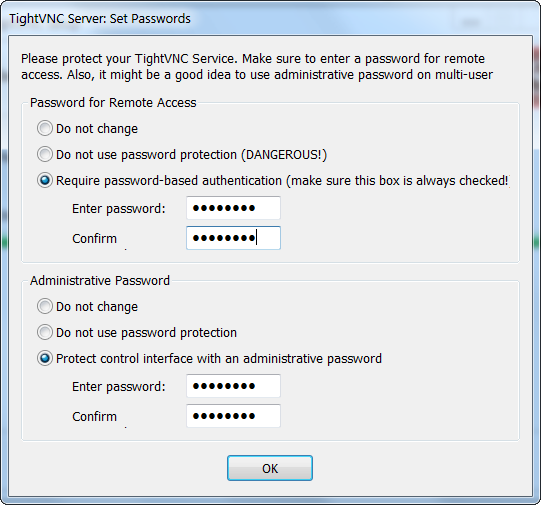
TightVNC’s source code is available for free download, and it can be implemented for personal as well as commercial usage. The software offers password-based authentication to let users securely connect to any remote device.
Key highlights of the tool:
Allows users to upload files from their local systems to the TightVNC server, and vice versa.
Lets Windows and Java users resize the remote desktop for smaller screens. Users also have an option to zoom into the remote screen for a better view.
Uses two passwords—one for complete access and the other for read-only access. Based on which password is entered, the server enables or disables remote keyboard and mouse events.
Supports the DFMirage mirror driver, an advanced video mirroring technology for remote access, to detect screen updates and collect pixel data.
Upgrade cost: None. It’s open source remote support software.
Support: A document library and frequently asked questions (FAQs).
FAQ: Does it offer Android and iOS mobile applications?
Answer: Yes. TightVNC offers remote desktop access via both Android and iOS applications.
3. UltraVNC
UltraVNC is an open source remote desktop solution with features such as screen sharing, remote PC access, text chat, and file transfer.
The software uses virtual network computing (VNC), a remote framebuffer (RFB) protocol, to set up and manage remote desktop sessions. It allows users to connect the admin (viewer) system with multiple remote host (server) systems.
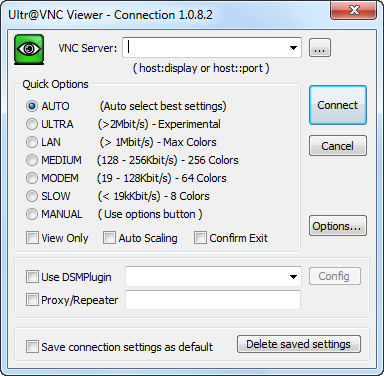
Key highlights of the tool:
Offers optional DiskStation Manager (DSM) encryption that secures all communication between the viewer and server systems.
Lets users transfer files as well as folders between remotely connected systems.
Provides a text chat tool with an intuitive graphical user interface (GUI) for easy and quick communication between the viewer and server systems.
Upgrade cost: None. It’s an open source remote desktop application.
Support: A document library and user discussion forum.
FAQ: Can I access the software on a mobile device?
Answer: UltraVNC is tailored only for Windows PCs, and it doesn’t offer iOS or Android mobile applications.
Things to consider when choosing a remote desktop client
You now have complete details of these three popular open source and free remote access software solutions. The next step is shortlisting the one that’s best for your business. We recommend considering the following when making a purchase decision:
Ensure the tool you’ve selected is easy to use. You don’t want your team to go through complex settings for establishing a remote session.
Make sure all the features you need are available in the free version.
Check if the system you’ve chosen offers ample security with its free version. Opt for a remote desktop app that offers a stable and secure connection between the viewer and host systems.
Visit GetApp’s remote desktop software directory to read user reviews of your shortlisted tool as well as compare other remote access software solutions based on reviews.
Methodology
We identified popular products for “open source and free remote desktop software” via Incognito Google search on July 13, 2020. Products that appeared either individually on the first SERP page or at least twice on third-party listings during the search were shortlisted for further assessment.
Shortlisted products were evaluated against the definition of remote desktop software: Remote desktop software allows employees to access their files and applications from multiple servers and assists IT departments with troubleshooting techniques to solve issues remotely.
The tools were further evaluated for a stand-alone free module that doesn’t need to be purchased post a limited period or expiry of usage limits.
Tools that met all of the above criteria were selected for the article.
Ankita Singh
More on Customer Service



Jun 18, 2024

Dec 08, 2023