GetApp offers objective, independent research and verified user reviews. We may earn a referral fee when you visit a vendor through our links.
Our commitment
Independent research methodology
Our researchers use a mix of verified reviews, independent research, and objective methodologies to bring you selection and ranking information you can trust. While we may earn a referral fee when you visit a provider through our links or speak to an advisor, this has no influence on our research or methodology.
Verified user reviews
GetApp maintains a proprietary database of millions of in-depth, verified user reviews across thousands of products in hundreds of software categories. Our data scientists apply advanced modeling techniques to identify key insights about products based on those reviews. We may also share aggregated ratings and select excerpts from those reviews throughout our site.
Our human moderators verify that reviewers are real people and that reviews are authentic. They use leading tech to analyze text quality and to detect plagiarism and generative AI.
How GetApp ensures transparency
GetApp lists all providers across its website—not just those that pay us—so that users can make informed purchase decisions. GetApp is free for users. Software providers pay us for sponsored profiles to receive web traffic and sales opportunities. Sponsored profiles include a link-out icon that takes users to the provider’s website.
How To Set Up Your YouTube Brand Account in Less Than Five Minutes
Get more views on your business’s video content by setting up a YouTube brand account. Here’s how to make one in less than five minutes (and why you should).


Which comes first, the YouTube brand account or the content? The beauty of social media is that you get to decide. Whether you have videos you’re ready to upload or you’re just starting to think about content, it’s never too early (or late) to create a YouTube account for your business.
A brand account is a specific YouTube channel for your business that you can manage through your personal account.
YouTube is able to play a critical role in your social media marketing strategy, especially if you’re on a budget. It has 2.29 billion users and is ranked the second most used social media platform–that’s 2.29 billion potential viewers of your content and 2.29 billion potential customers who could be exposed and introduced to your brand.
Before you can access this potential, you have to create a brand account and upload video content. But one thing at a time: Let’s talk about how to get your account up and running.
How to create a YouTube brand account
1. Click your YouTube Avatar and go to “Settings.”
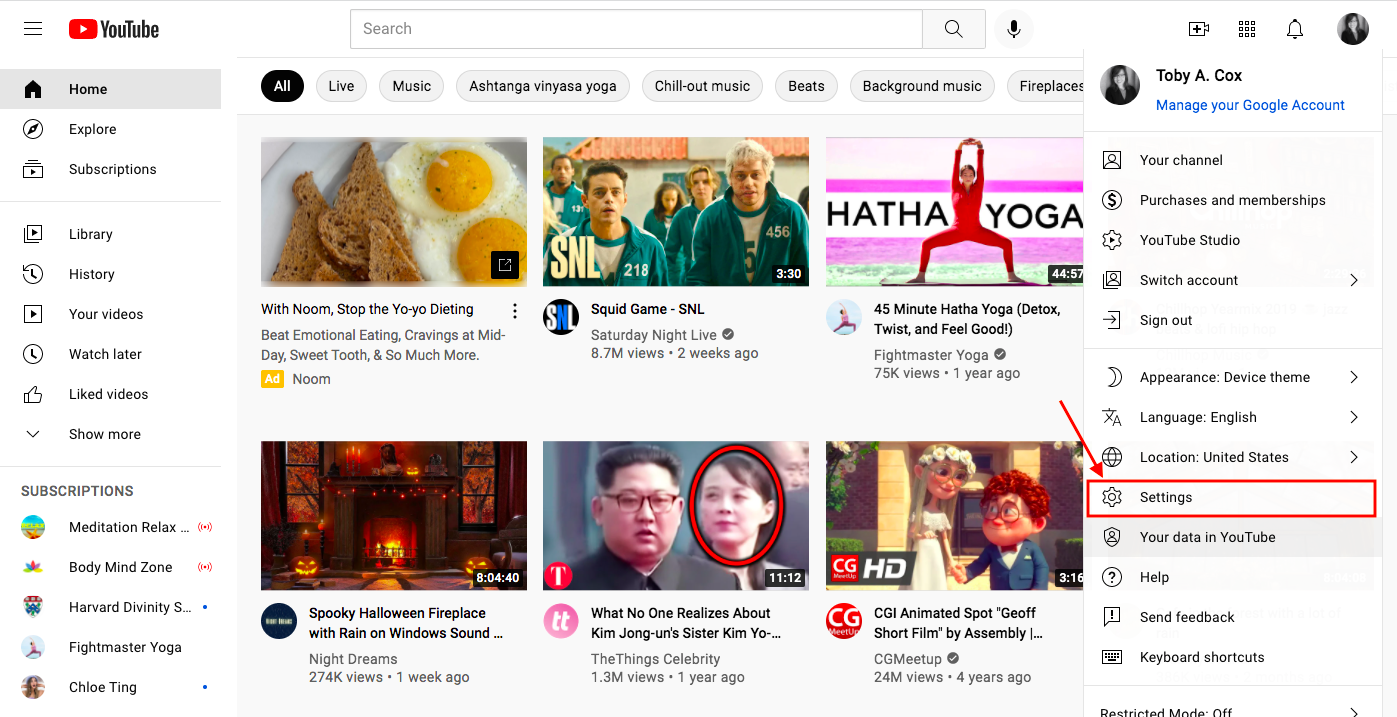
Source: Screenshots taken by author of personal account.
2. Click “Create a new channel.”
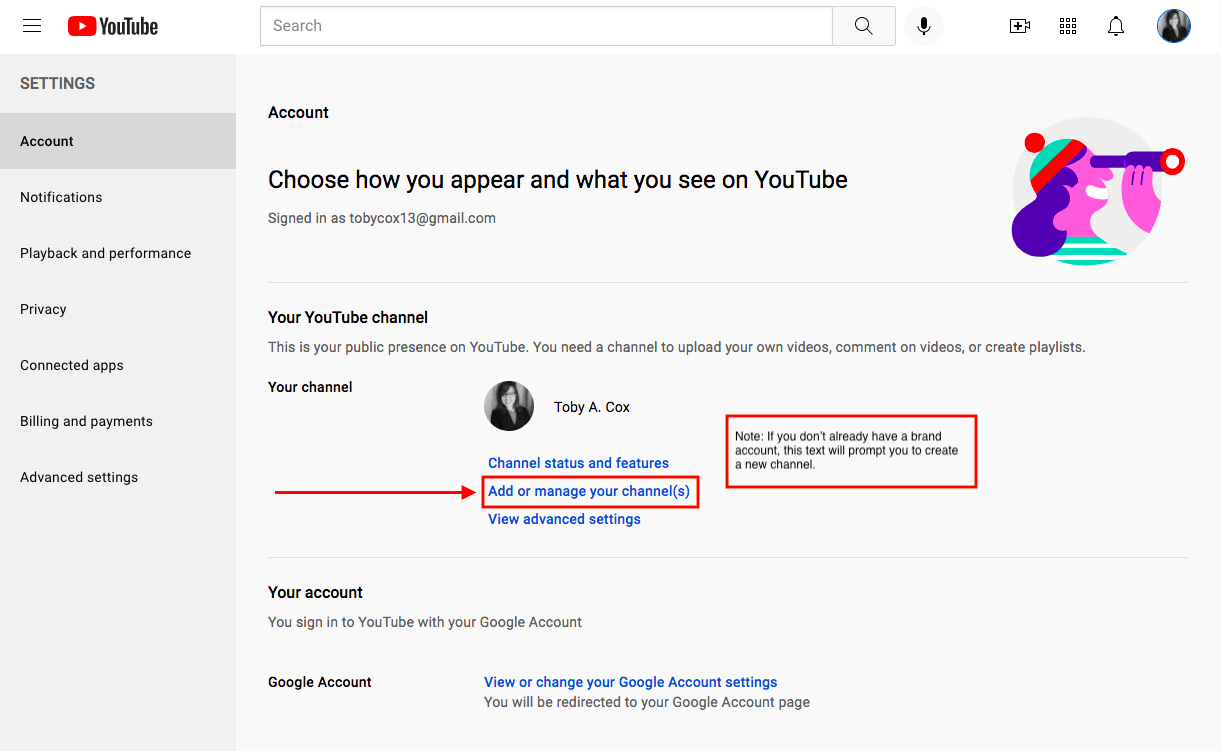
Note: On this page (if you don’t already have a brand account), you will see the option, “Create a new channel.” If you do already have a brand account, you’ll see this option as “Add or manage your channel(s).”
3. Type in a name for your new brand account.
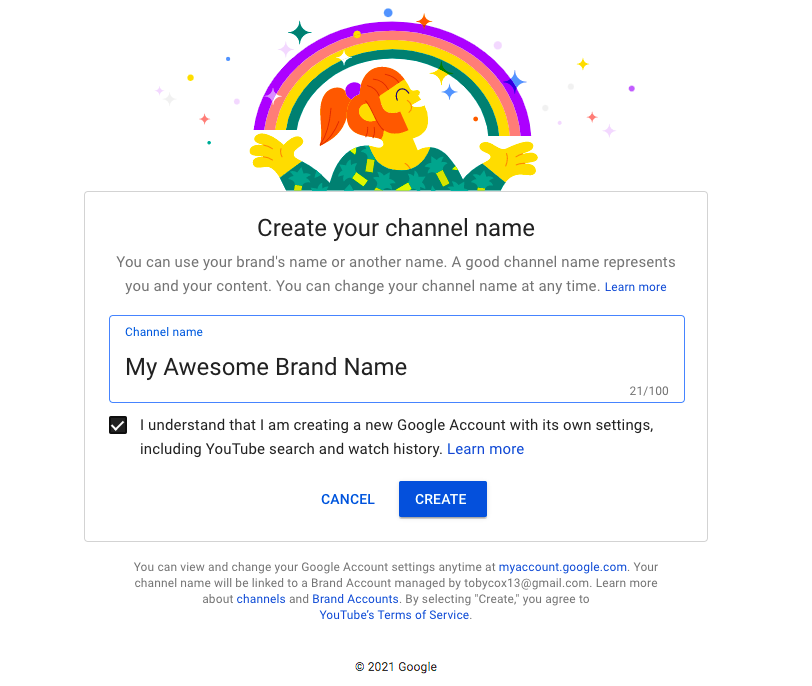
Control who can edit the channel
After you create your brand account, you’ll want to give access to employees who will need it.
1. Click on your avatar, and go to “Settings.”
2. Go to “Add or manage your channel(s).”
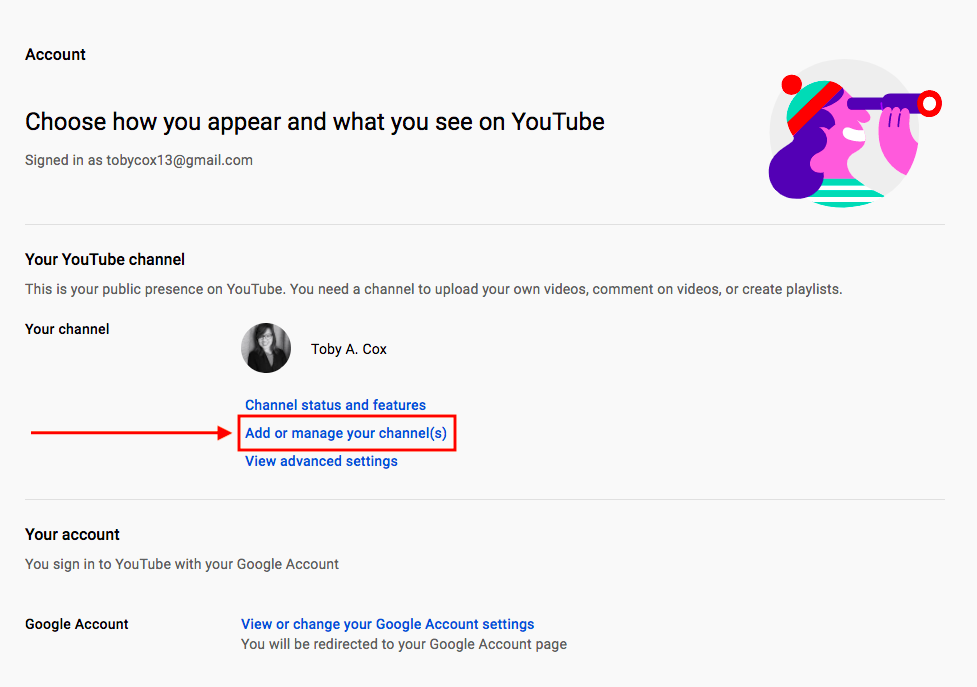
3. Select the brand you want to add/remove managers to/from.
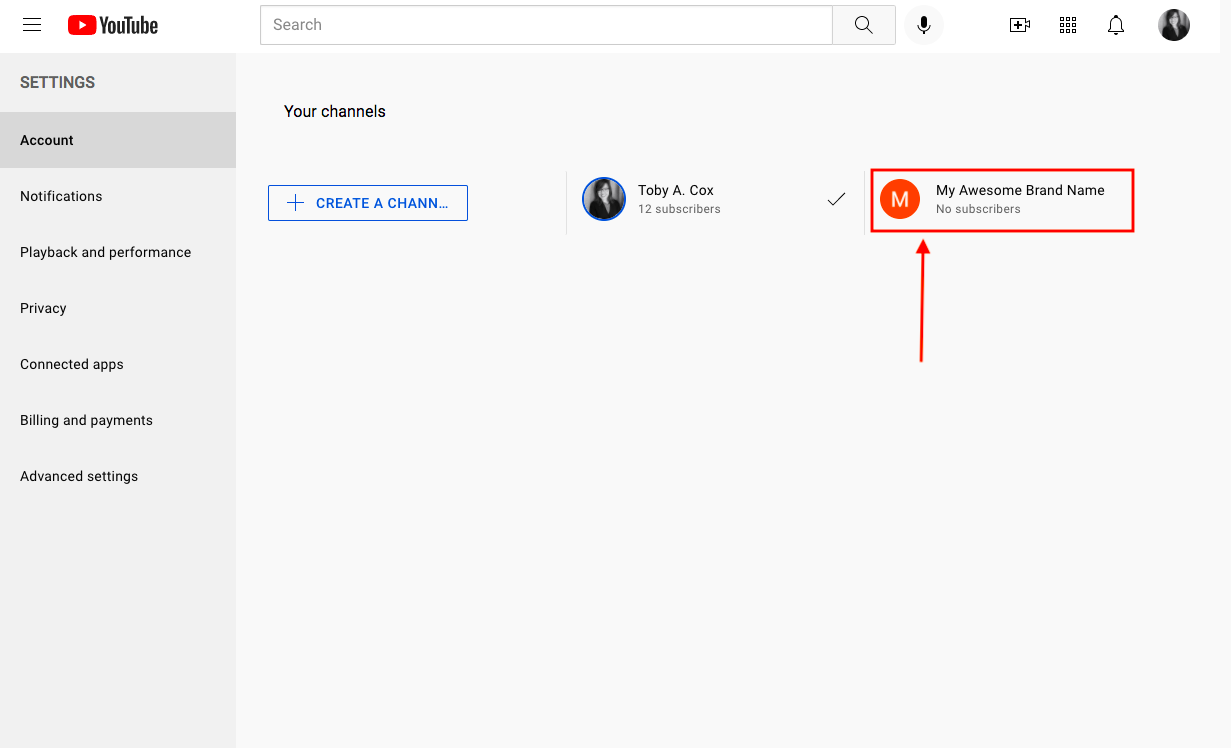
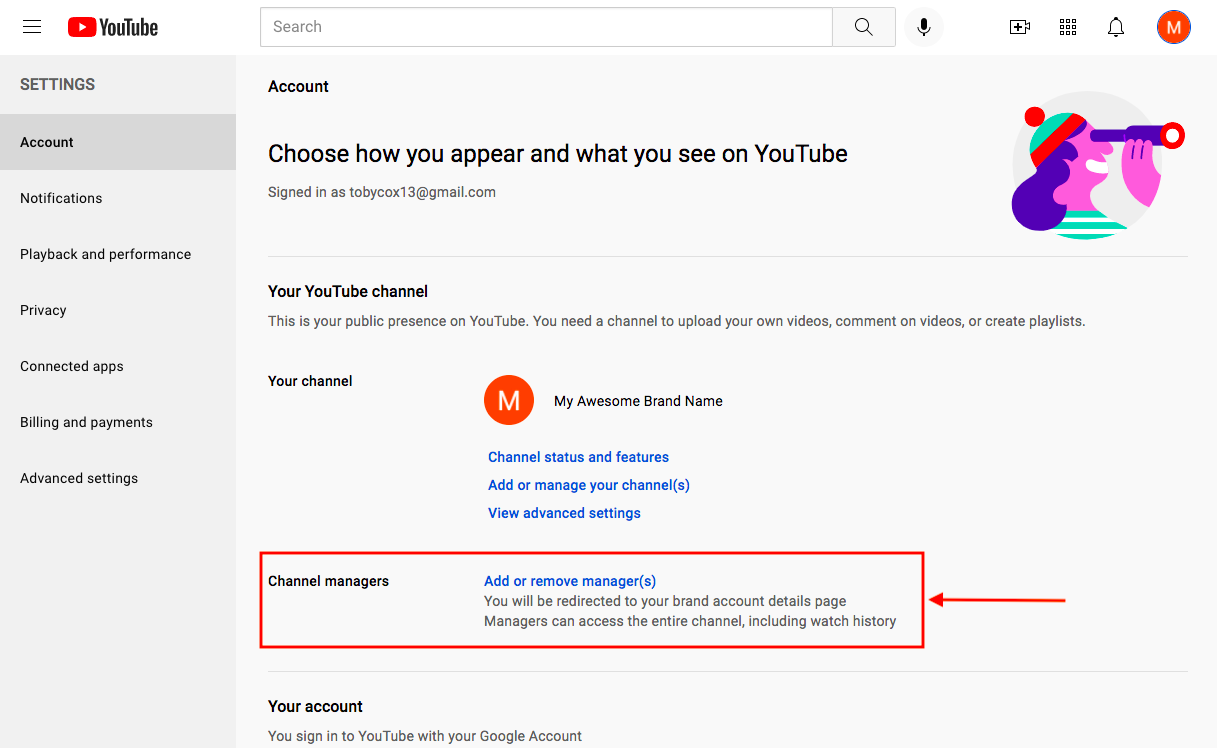
4. Click the brand’s avatar and go to “Settings.”
5. Click “Add or remove manager(s).”
6. Click “Manage Permissions.”
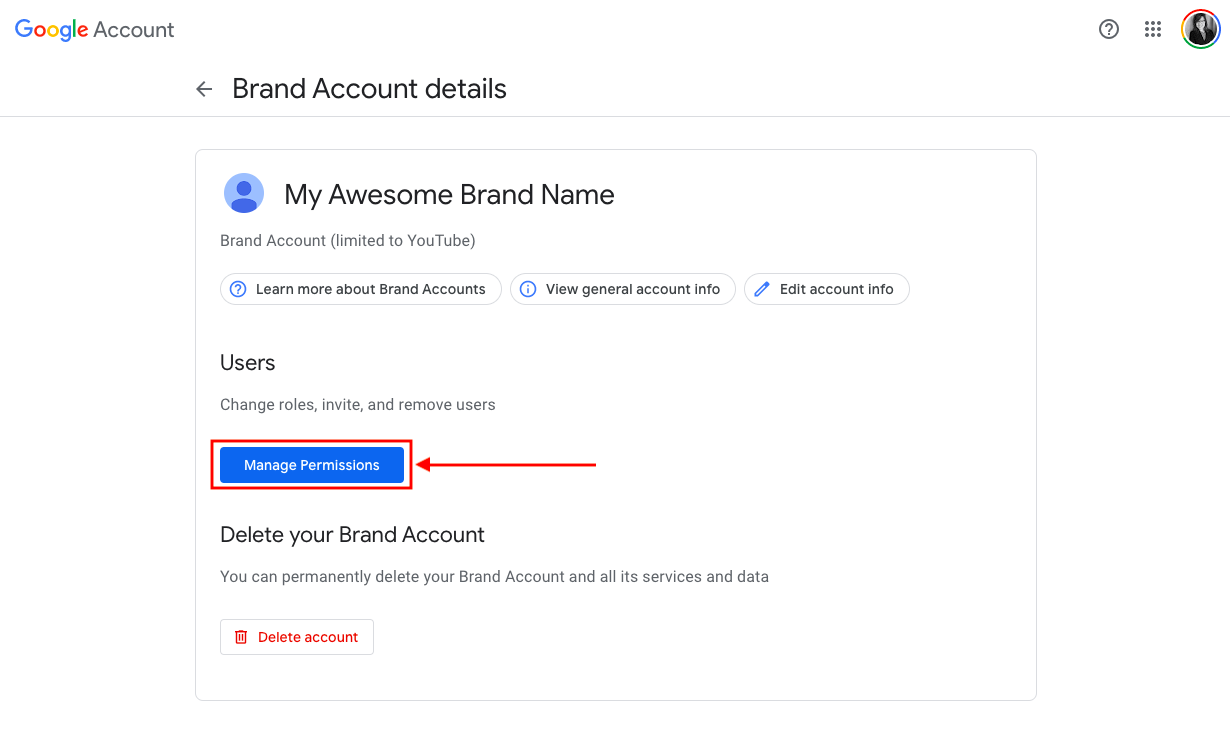
“Manage Permissions” means you can control who has access to the brand account and who can make changes to the account (e.g., upload content, edit descriptions, add other managers).
Make your brand channel uniquely yours
Using social media platforms, you get limited control over your page, so always take advantage of opportunities to customize your YouTube brand account.
1. Click your brand account’s avatar and go to “Your Channel.”
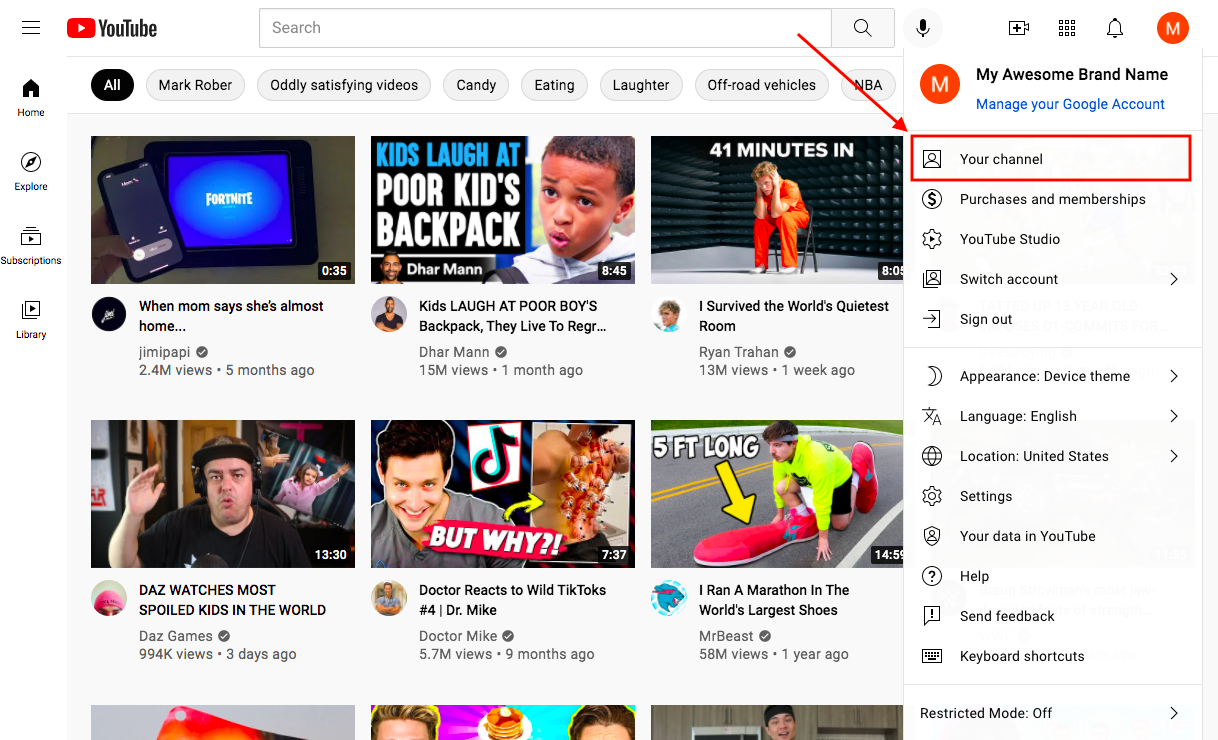
2. Click “Customize Channel.”
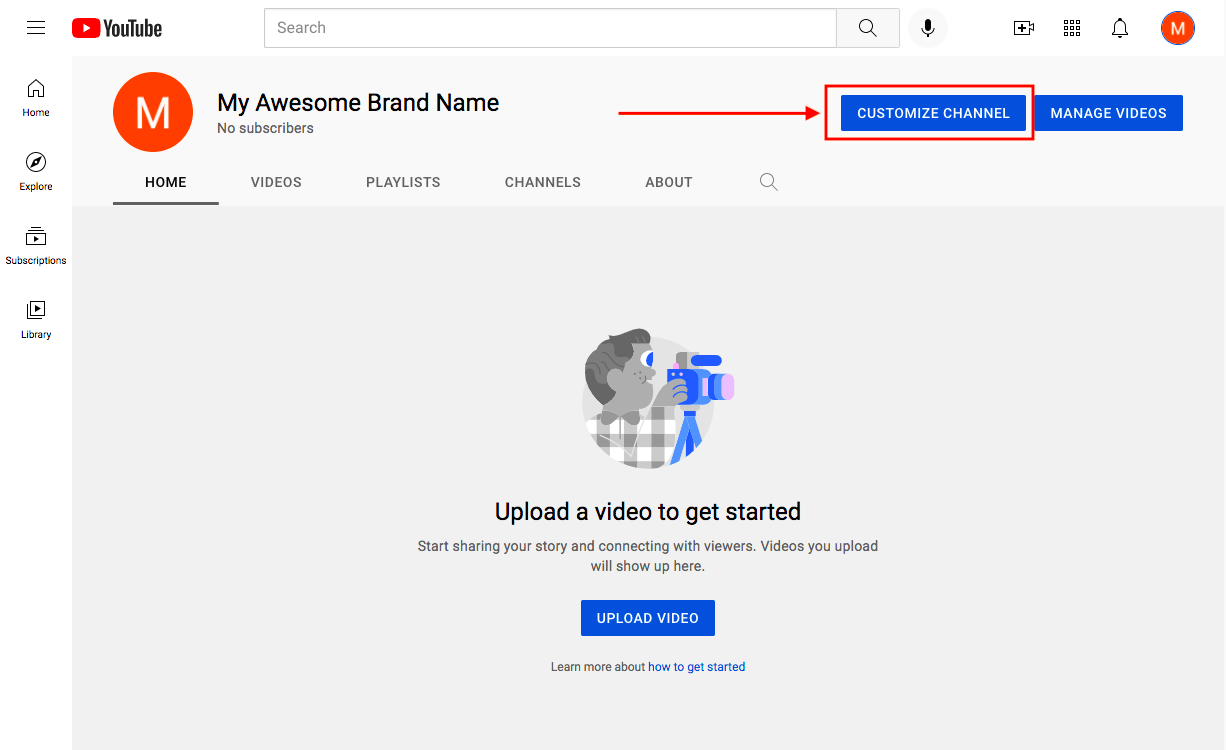
3. Customize your channel.
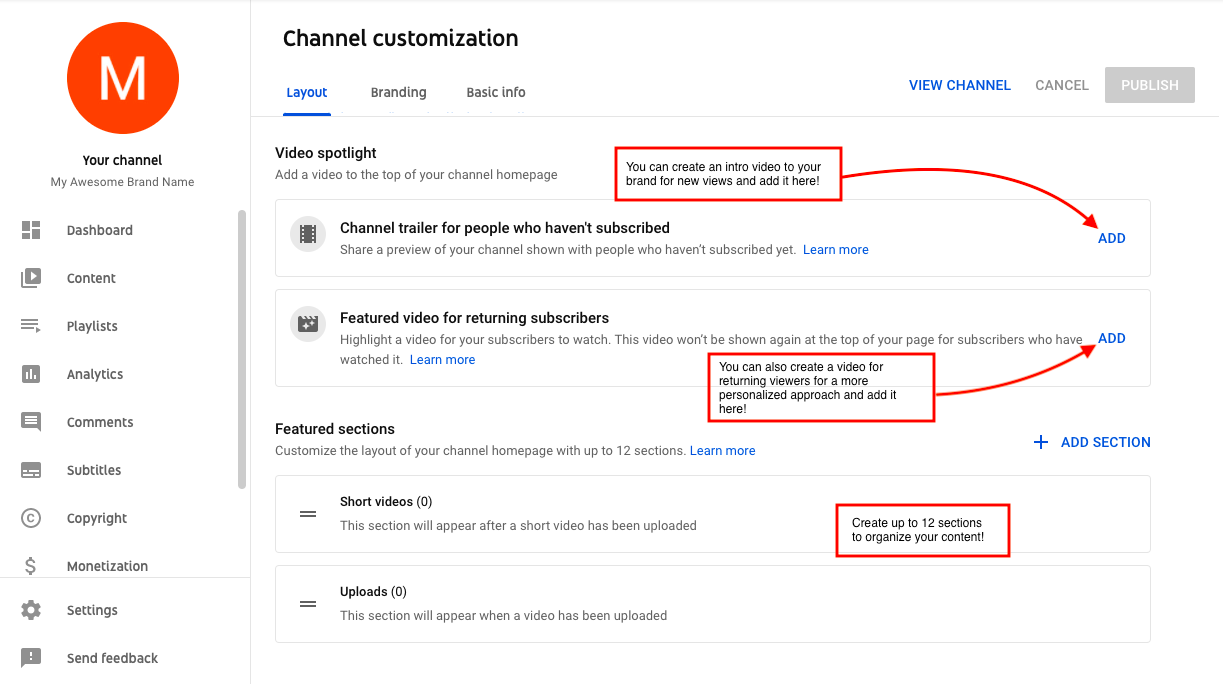
Your first stop in this realm is layout customization. On this tab, you can upload introduction videos for new visitors and more personalized videos for returning visitors to welcome them back. You can also organize your content in up to 12 sections.
4. The next customization step is branding.
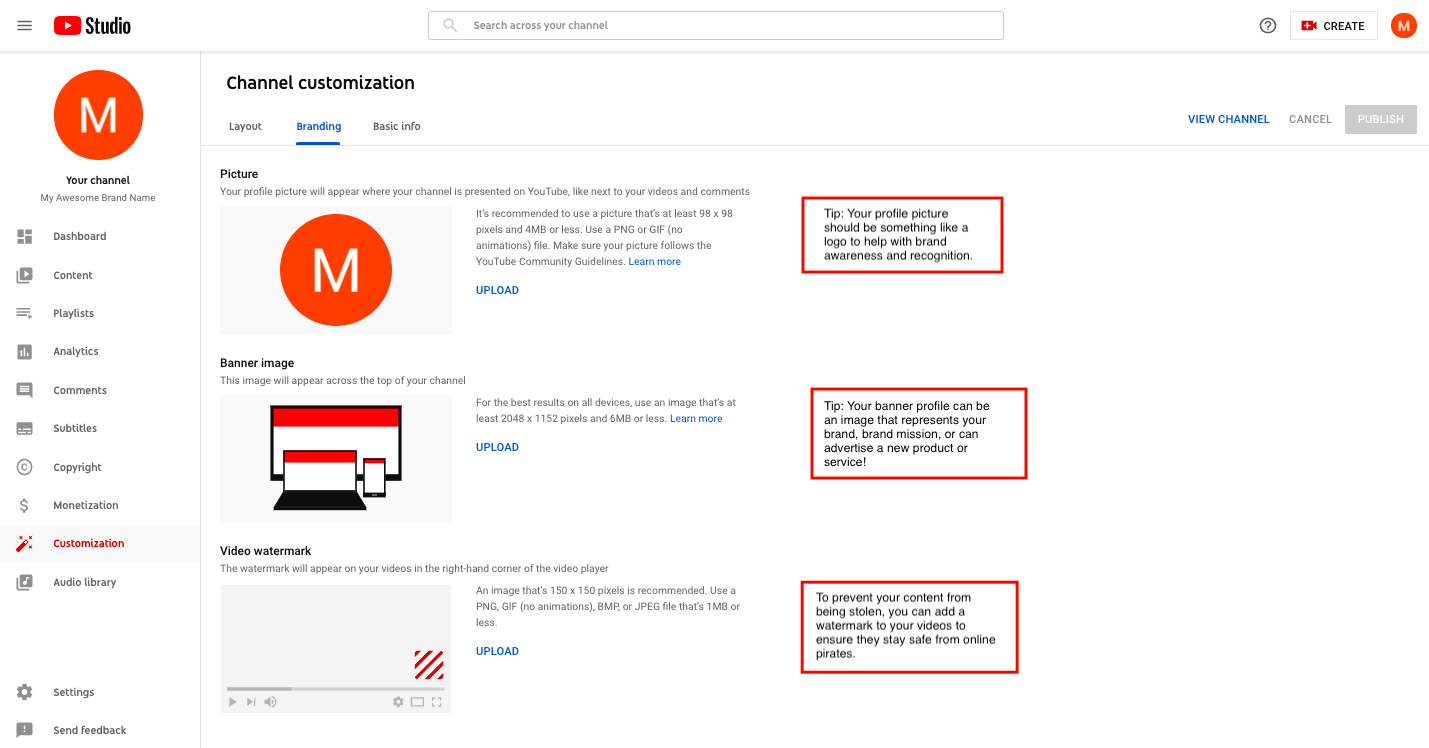
On this tab, you can upload your brand account’s profile picture, banner image, and add a watermark to your videos. For your profile picture, it’s best practice to make it your brand’s logo to increase brand recognition and awareness, but you can get more creative with your YouTube banner image.
Adding a watermark to your videos can help keep them safe and prevent people from stealing your brand’s marketing property.
5. The last step in channel customization is updating your brand’s basic information.
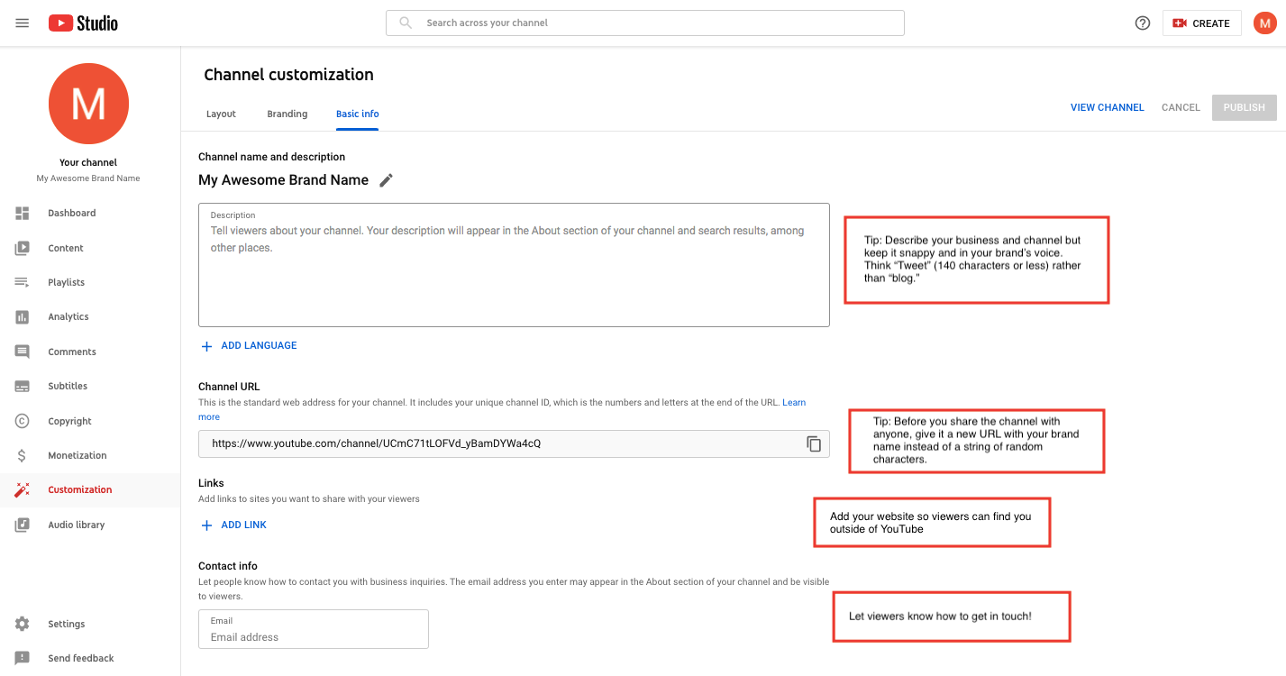
However, it’s important to note that this should really be called critical info. Your description might be one of the first impressions you make on a viewer, and it’s tone should match your video content’s voice. Think short and snappy, more like a tweet (140 characters or less) rather than a lengthy blog post.
Update your brand account’s URL so that it includes your brand’s name at the end of it, rather than a string of random characters.
Don’t forget to include your brand’s actual website and your contact information.
Need more resources? We’ve got you covered
This guide featured a comprehensive view of YouTube’s brand account creation, but we realize there might be other YouTube questions on your mind. Here’s a list of other YouTube-related resources on GetApp:
A Guide to YouTube Thumbnail Images (Dimensions, Best Practices, and Examples)
Here’s Everything You Need to Know About YouTube Demonetization Rules
What is YouTube Premium, And What Does it Mean For My Business?
We also recommend looking at the tools in our video making and video editing software directories, where you can compare tools’ functionality and usability, as well as read reviews from real users such as you.
Note:
The steps to create a brand account on YouTube were researched in November 2021, and the screenshots reflect the app layout on a MacBook. Applications and layouts are liable to change; see YouTube’s Help Center for additional information.
Toby Cox
More on YouTube Marketing