GetApp offers objective, independent research and verified user reviews. We may earn a referral fee when you visit a vendor through our links.
Our commitment
Independent research methodology
Our researchers use a mix of verified reviews, independent research, and objective methodologies to bring you selection and ranking information you can trust. While we may earn a referral fee when you visit a provider through our links or speak to an advisor, this has no influence on our research or methodology.
Verified user reviews
GetApp maintains a proprietary database of millions of in-depth, verified user reviews across thousands of products in hundreds of software categories. Our data scientists apply advanced modeling techniques to identify key insights about products based on those reviews. We may also share aggregated ratings and select excerpts from those reviews throughout our site.
Our human moderators verify that reviewers are real people and that reviews are authentic. They use leading tech to analyze text quality and to detect plagiarism and generative AI.
How GetApp ensures transparency
GetApp lists all providers across its website—not just those that pay us—so that users can make informed purchase decisions. GetApp is free for users. Software providers pay us for sponsored profiles to receive web traffic and sales opportunities. Sponsored profiles include a link-out icon that takes users to the provider’s website.
How To Embed a YouTube Video in PowerPoint With Confidence
Adding a video to your PowerPoint presentation can make a lasting impression on your viewers. And luckily, it's easy. Here’s how to add video content to your PowerPoint presentation.


Maybe you’re working on a presentation to wow investors, fellow employees, or your managers. Maybe you want to include one of your team’s own video creations, or you might want to include a video that includes relevant facts or data that will help you make an important point.
Whatever the case may be, embedding a YouTube video in PowerPoint is extremely easy. Let’s take a look at how to embed a video in your presentation.
How to add a video from YouTube to your PowerPoint presentation
1. Choose the slide to which you want to add the video.
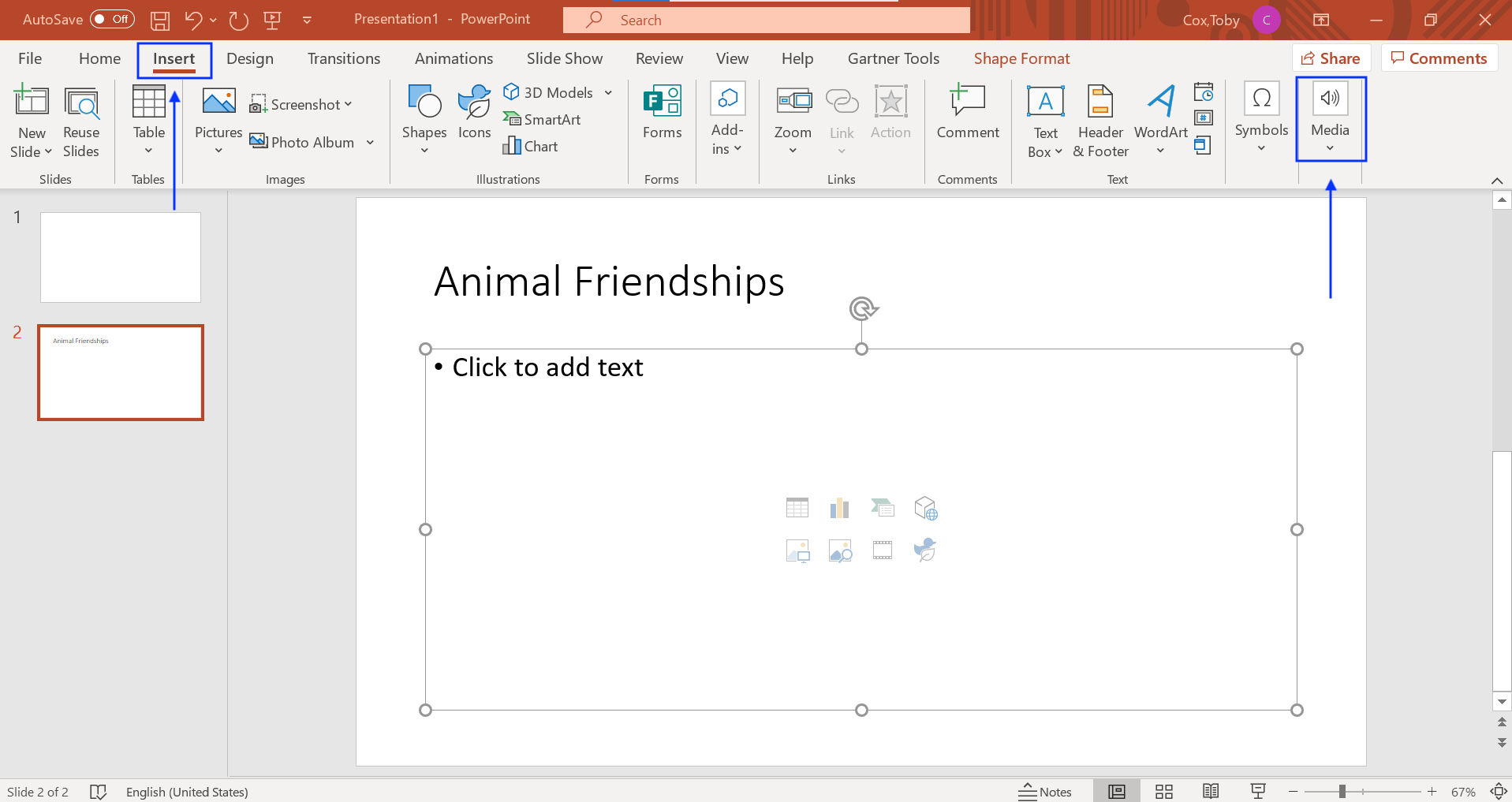
Source: All screenshots are taken by the author.
Click through to the PowerPoint slide you want to add the video to. To add in a video, you’ll click “Insert,” and then select “Media” to be shown a drop-down menu. Select “Video.” If you are adding a video file from your computer, select “This Device...,” and follow the prompts.
If you’re adding a video from YouTube, click “Online Video…” and have the URL link from the video copied.
2. Add in the YouTube URL.
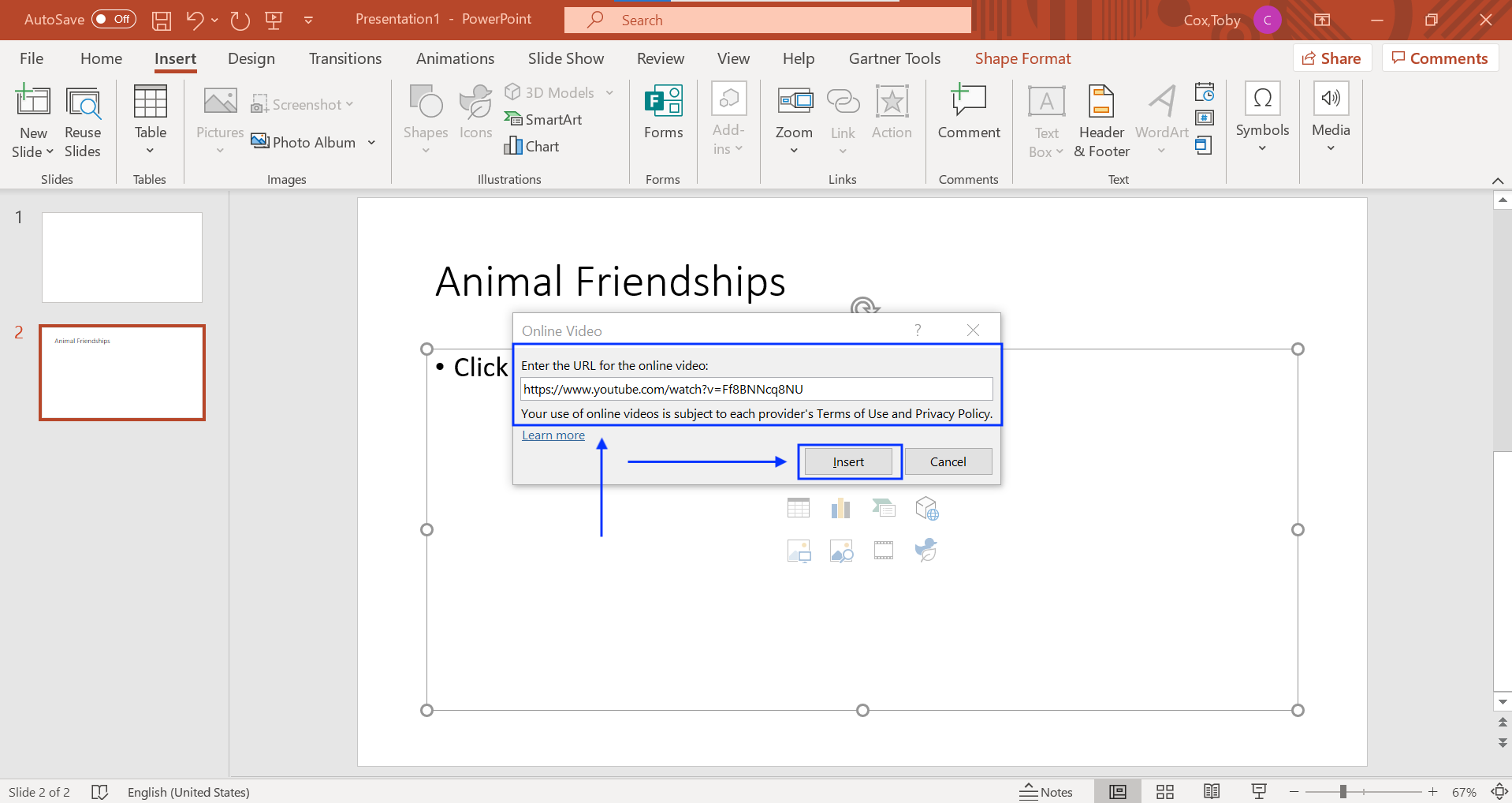
Paste the YouTube URL into the appropriate box, and click “Insert.”
3. Adjust the video’s format.
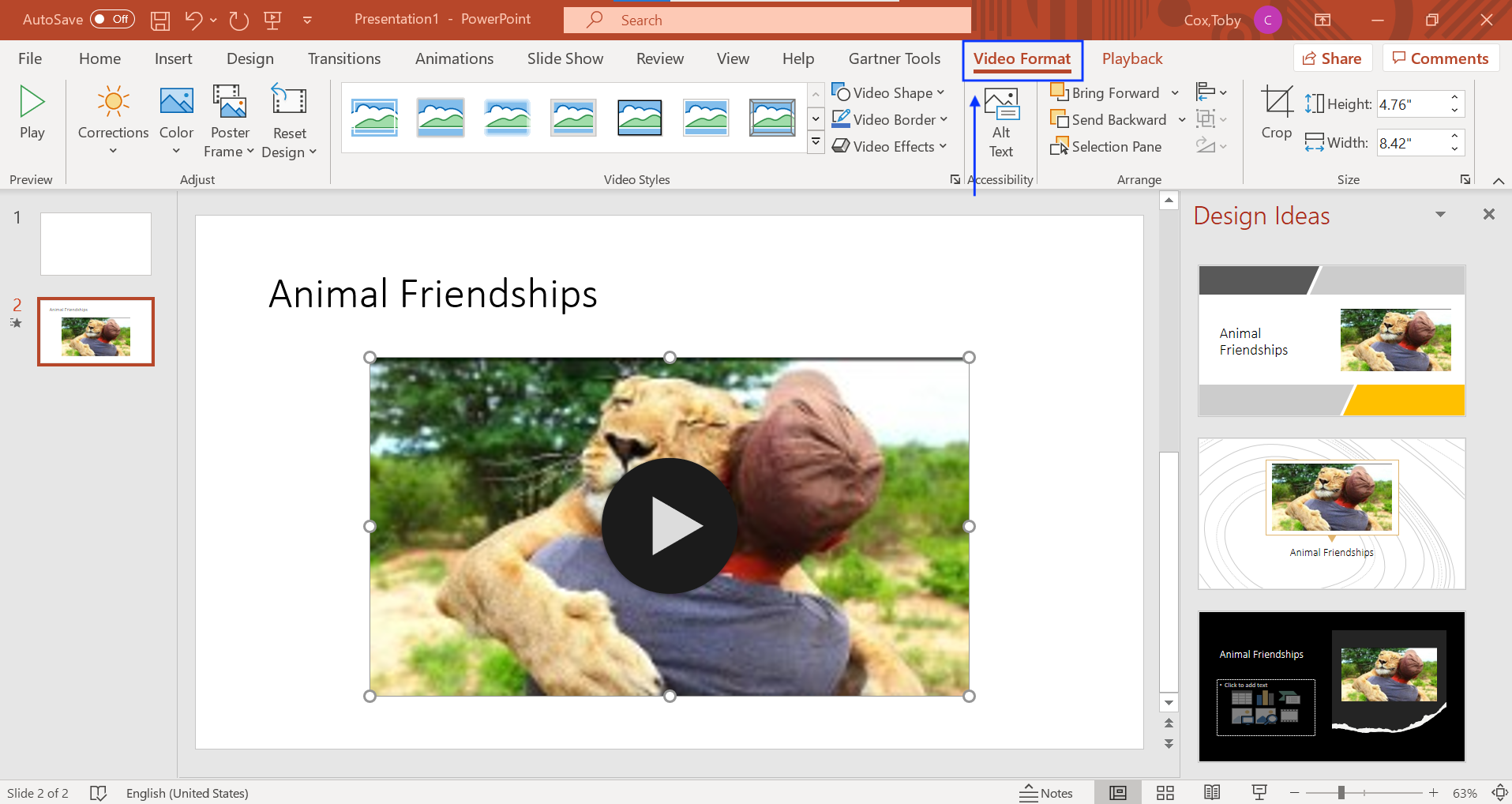
Now that your video is in the slide, you can adjust it and make it look the way you want. On the “Video Format” tab, you can adjust its brightness, add filters, give it borders, change the video shape, and adjust its dimensions.
4. Control playback options.
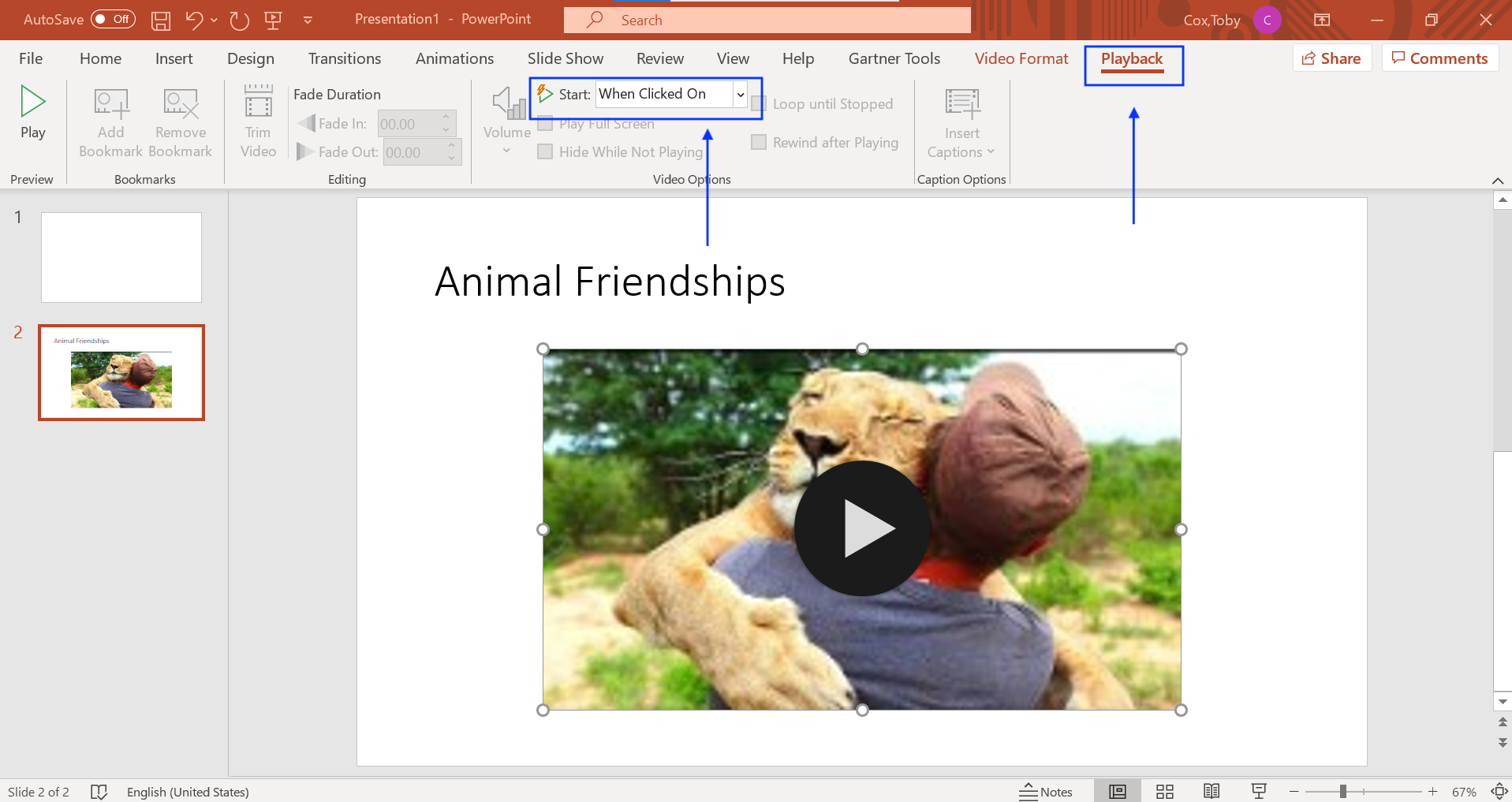
On the “Playback” tab, you can control when the video will play during your presentation. These options are arguably the most important because you don’t want your video to play too soon or not play when you want it to. For example, if you want the video to play as soon as you click to the slide, click “Automatically.” If you want more control over when the video plays, select “When Clicked On.” This means that the video will not play until you click on it. It also means no surprises.
Present with confidence
Now that you’ve added a video to your PowerPoint presentation, you’re ready to get into the conference (or video conferencing) room and present with confidence. Remember to always run through your presentation a few times to make sure your PowerPoint presentation appears how you expect it to, and give yourself enough time to fix any bugs. Be sure to get enough rest, drink water, eat your veggies, and take deep breaths—you’ve got this!
Need more resources? We’ve got you covered
This guide walks you through how to embed a YouTube video on PowerPoint, but we realize there might be other YouTube questions on your mind. Here’s a list of other YouTube-related resources on GetApp:
We also recommend looking at the tools in our video making and video editing software directions, where you can compare tools’ functionality and usability, as well as read reviews from real users such as you.
Note:
The applications mentioned in this article are examples to show a feature in context and are not intended as endorsements or recommendations. They have been obtained from sources believed to be reliable at the time of publication.
The steps to embed a YouTube video on YouTube were researched in November 2021, and the screenshots reflect the app layout on a PC desktop. Applications and layouts are liable to change; see YouTube’s Help Center for additional information.
Toby Cox