GetApp offers objective, independent research and verified user reviews. We may earn a referral fee when you visit a vendor through our links.
Our commitment
Independent research methodology
Our researchers use a mix of verified reviews, independent research, and objective methodologies to bring you selection and ranking information you can trust. While we may earn a referral fee when you visit a provider through our links or speak to an advisor, this has no influence on our research or methodology.
Verified user reviews
GetApp maintains a proprietary database of millions of in-depth, verified user reviews across thousands of products in hundreds of software categories. Our data scientists apply advanced modeling techniques to identify key insights about products based on those reviews. We may also share aggregated ratings and select excerpts from those reviews throughout our site.
Our human moderators verify that reviewers are real people and that reviews are authentic. They use leading tech to analyze text quality and to detect plagiarism and generative AI.
How GetApp ensures transparency
GetApp lists all providers across its website—not just those that pay us—so that users can make informed purchase decisions. GetApp is free for users. Software providers pay us for sponsored profiles to receive web traffic and sales opportunities. Sponsored profiles include a link-out icon that takes users to the provider’s website.
How To Change Your YouTube Channel's Name
Five simple steps to change the name of your YouTube channel in under five minutes.


One of the main reasons you may want to change your YouTube channel’s name is to keep some separation between your YouTube channel and Google account. Previously, to change the name of your YouTube channel, you would also have to change the name of your entire Google account.
But now you can keep separate names for your YouTube channel and other Google services such as Gmail and Google Docs. That way, when you send an email from the Google account you use for YouTube, the recipient will see your real name and not the name of your YouTube channel.
Here’s how to change the name of your YouTube channel:
Sign into your YouTube account.
Click “YouTube Studio.”
On the left hand side, click “Customization.”
Select the “Basic info” tab from the three options at the top.
Find the “Edit channel name” button (the pencil icon), and select it.
Enter a new name for your YouTube channel.
Click “Publish” in the top right corner.
This list includes all the steps to change your YouTube channel name, but if you think you may get lost, don’t worry; we’ve got a breakdown of each step, including screenshots, below.
If you rather want to know how to remove your YouTube channel entirely, we have you covered there as well. Check out how to delete your YouTube channel in under five minutes.
Step #1: Sign into your YouTube account
Open YouTube, and click the “Sign in” button in either the top right or middle left of the YouTube homepage.
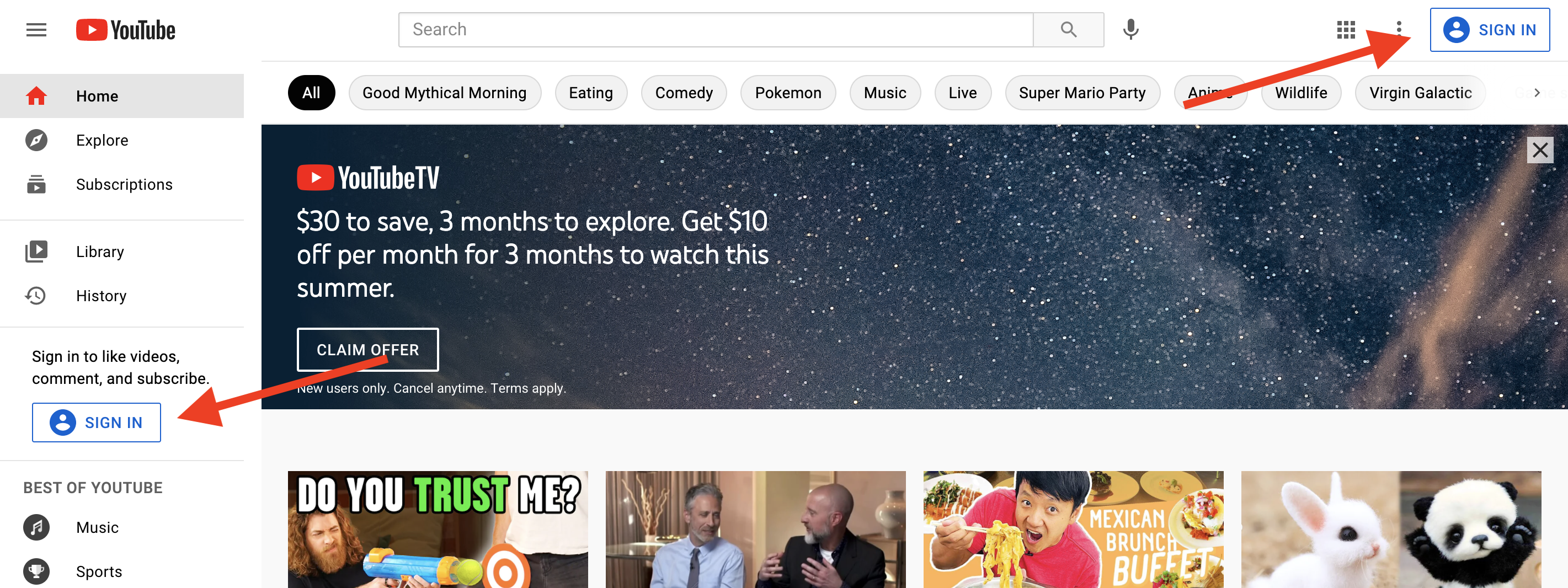
A screenshot of the sign-in buttons on YouTube's homepage
Step #2: Go to your YouTube Studio channel page
Once you’ve signed into your account, click on the profile icon in the top right corner. From the dropdown menu, select “YouTube Studio” to move to the next page.
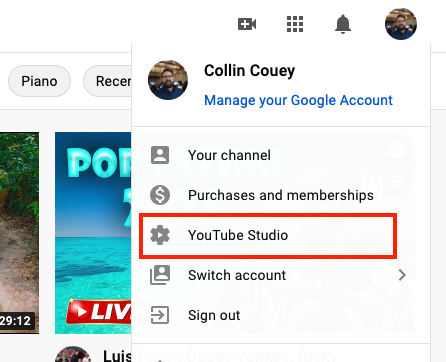
A screenshot of how to get to your YouTube Studio page
You’ll land on your YouTube Studio page. This is where you create YouTube playlists, look at analytics, upload videos, and view comments on your channel. The Studio page is the heart and soul of your YouTube channel, so make yourself familiar with the tabs here.
For now though, click the “Customization” tab on the bottom left of the page.

A screenshot showing where to customize your YouTube channel inside of YouTube Studio
Step #4: Select “Basic info” to change your YouTube channel’s name
On clicking “Customization,” you’ll find yourself on a page with three menu options: “Layout,” “Branding,” and “Basic info.” The place where you can change your YouTube channel’s name is under the “Basic info” tab, so go ahead and click that.

A screenshot of the customization options available on YouTube Studio
On the “Basic info” page, you can change your YouTube channel name as well as your YouTube channel description, channel URL, and contact information.
A compelling channel description informs your viewers about what to expect from your channel. It increases the chances of viewer subscription, so it’s worth taking some time to revamp your channel’s description while you’re here.
Your YouTube URL should match what your channel is about as closely as possible so search engines will present it to people looking for related content. If you want to optimize your YouTube URL, you can do it on this page.
But first, let’s finish changing your YouTube channel’s name. Click the “Edit channel name” button, which is right next to your channel’s existing name (it’s the pencil icon). A text box will come up; type in your desired new channel name in the box.
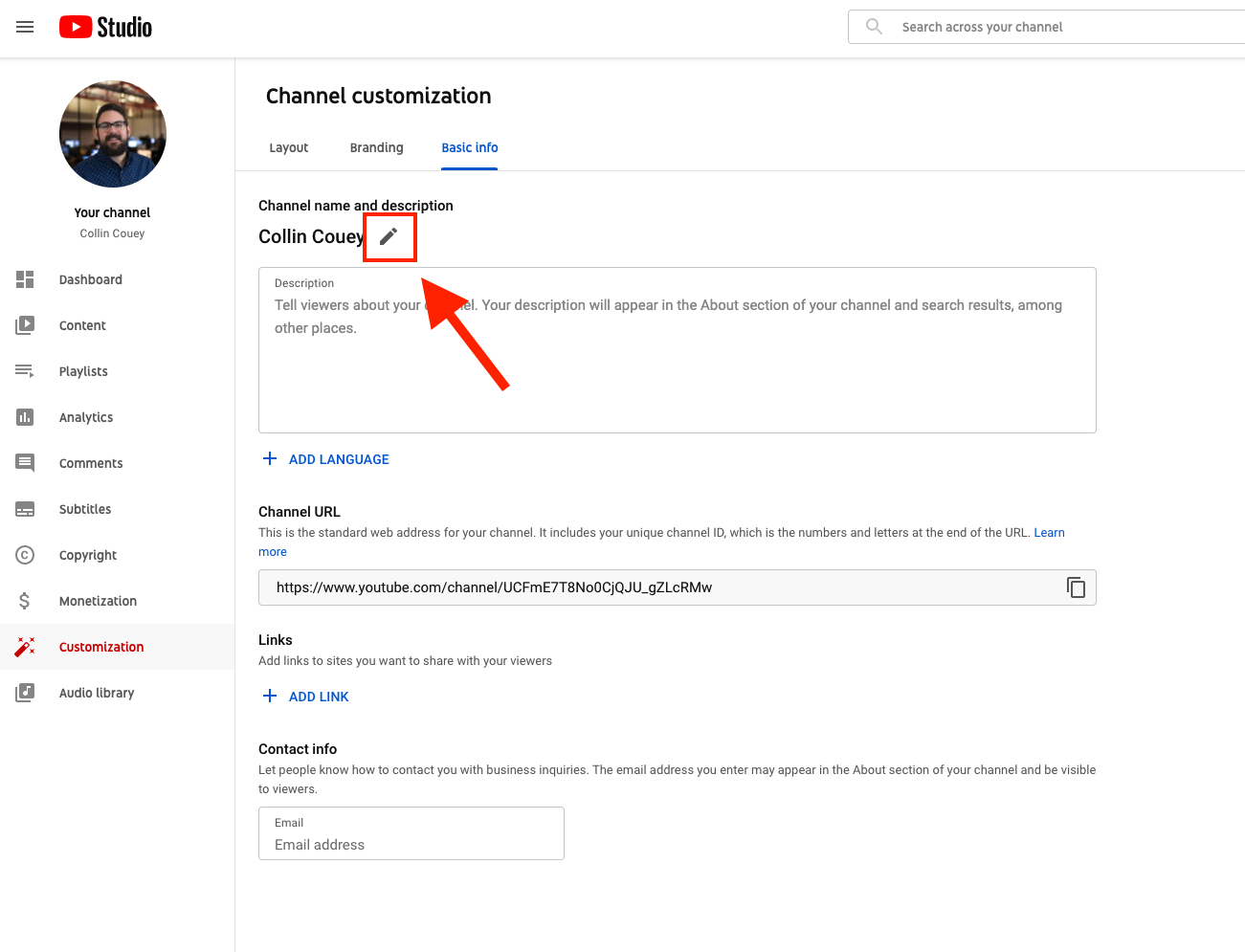
A screenshot of the "Edit channel name" button in YouTube Studio
Step #5: Click “Publish,” and you’re done
Once you’ve entered a new channel name, look for the “Publish” button in the top right corner of the page. Simply click it; you’ll get a confirmation that the name change is successful.
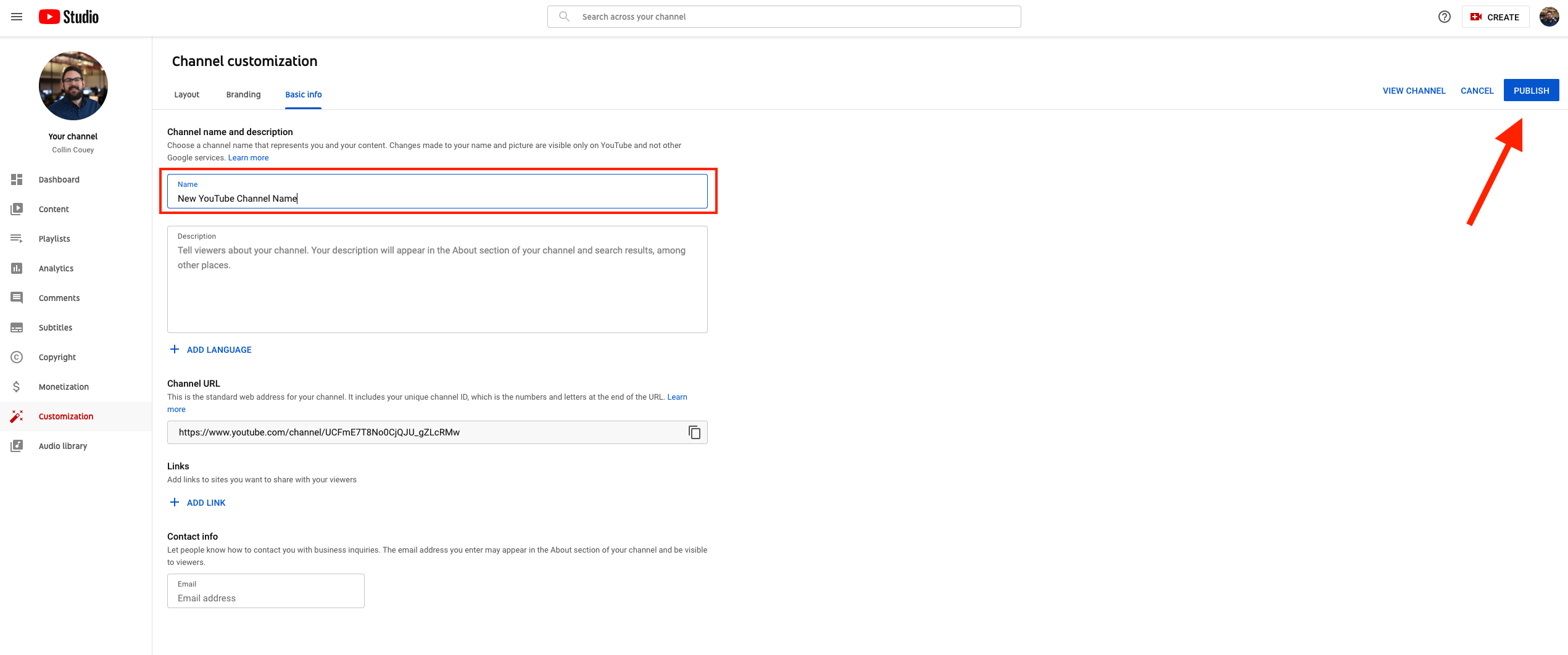
A screenshot of the “Publish” button in YouTube Studio
Bonus tip: How to change your YouTube channel picture and banner
While you’re on the YouTube Studio customization page, you may also want to consider changing your YouTube channel’s picture or banner. It’s just as easy as changing the name and follows many of the same steps.
To change your channel’s picture, follow steps 1 through 3. For step 4, instead of selecting “Basic info,” select “Branding.”

A screenshot of YouTube Studio's branding customization
On the “Branding” page, click the “Change” button next to your profile picture, and select a new picture for your channel.
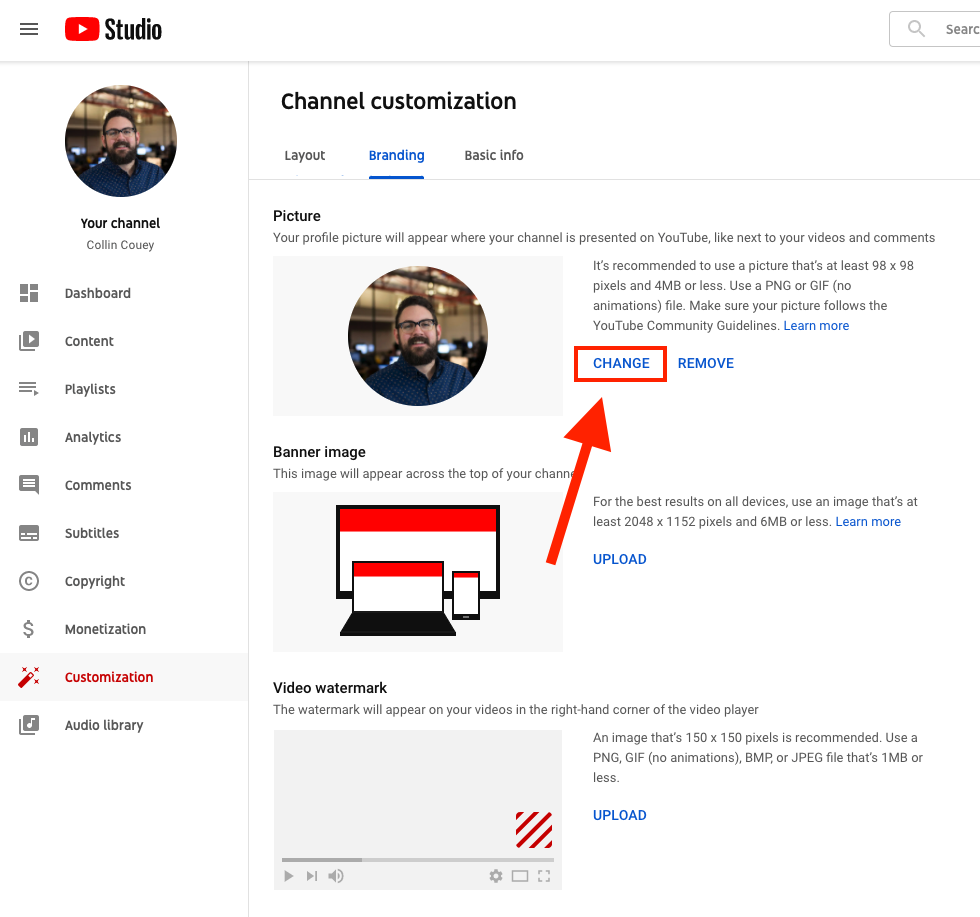
A screenshot of how to change your YouTube channel picture
Once you’ve uploaded a new picture, click “Publish” like you did when you changed your channel name, and you’re all set.
Create YouTube videos to add to your channel
Now that you’ve successfully changed your YouTube channel’s name, focus on making more compelling videos to increase your subscriber count and monetize your content.
Free software to create YouTube content
Use these free video making and video editing software tools from GetApp to begin your YouTube journey. On GetApp, you can find and compare hundreds of tools by breaking down their functionality and usability. You can also read reviews from real software users just like you.
Find more resources to help you manage your channel
We hope this guide has prepared you to turn your content into a cash cow. And if you’ve found this article helpful, there’s even more resources for your YouTube channel on our site:
A Guide to YouTube Thumbnail Images (Dimensions, Best Practices, and Examples)
Here’s Everything You Need to Know About YouTube Demonetization Rules
What is YouTube Premium, And What Does it Mean For My Business?
We also recommend taking a look at the tools in our video making and video editing software directories, where you can compare tools’ functionality and usability, as well as read reviews from real users like you.